


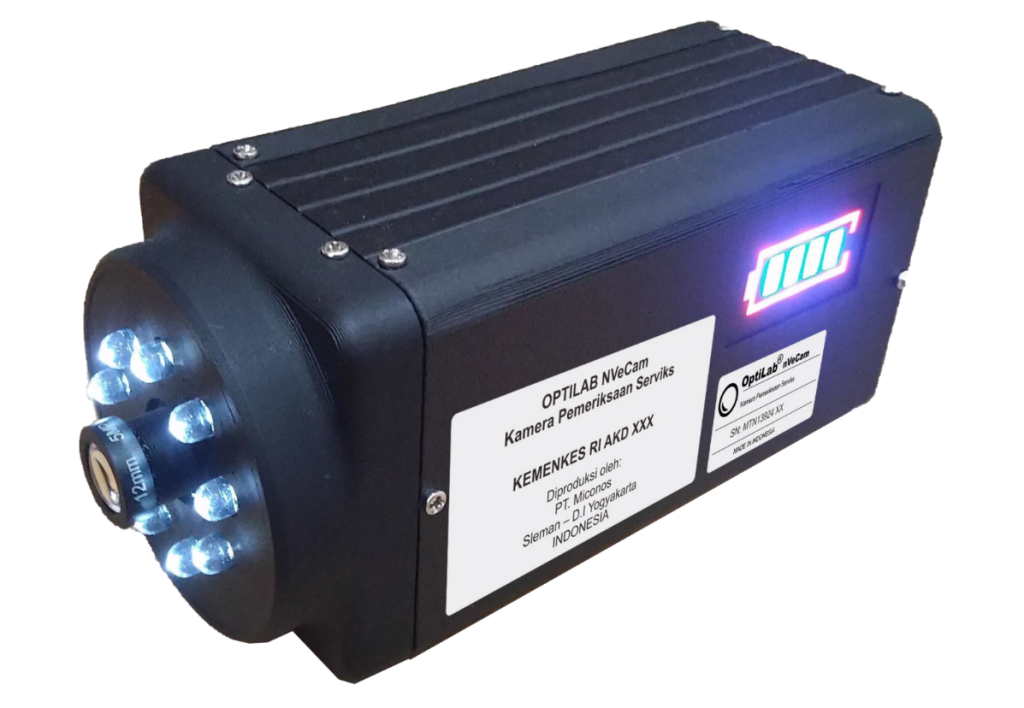
OptiLab NVeCam is a cervical examination camera that can connect to a laptop or smartphone via Wi-Fi. Users do not need to install any additional software because the images can be viewed through a web browser. Here are the steps for using NVeCam to view and save examination images.
1. Turn on the NVeCam Device
Remove the lens cap, then connect the power adapter if necessary. The NVeCam can also run on the battery built into the device. Turn the knob to the right until you hear a click and the light turns on. Wait about 30 seconds for the device’s Wi-Fi network to become active.
2. Connect your laptop or smartphone to the NVeCam Wi-Fi network
Open the Wi-Fi settings on your laptop or smartphone, then select the NVeCam hotspot network. Enter the default password 12345678 to connect your device.
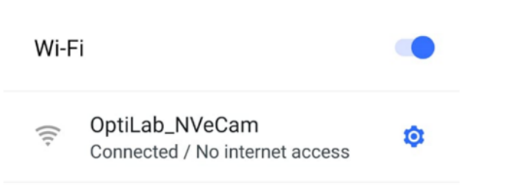
For smartphone users, temporarily turn off mobile data. This step helps prevent issues when accessing the camera URL via a Wi-Fi network.
3. Open the Camera View in a Browser
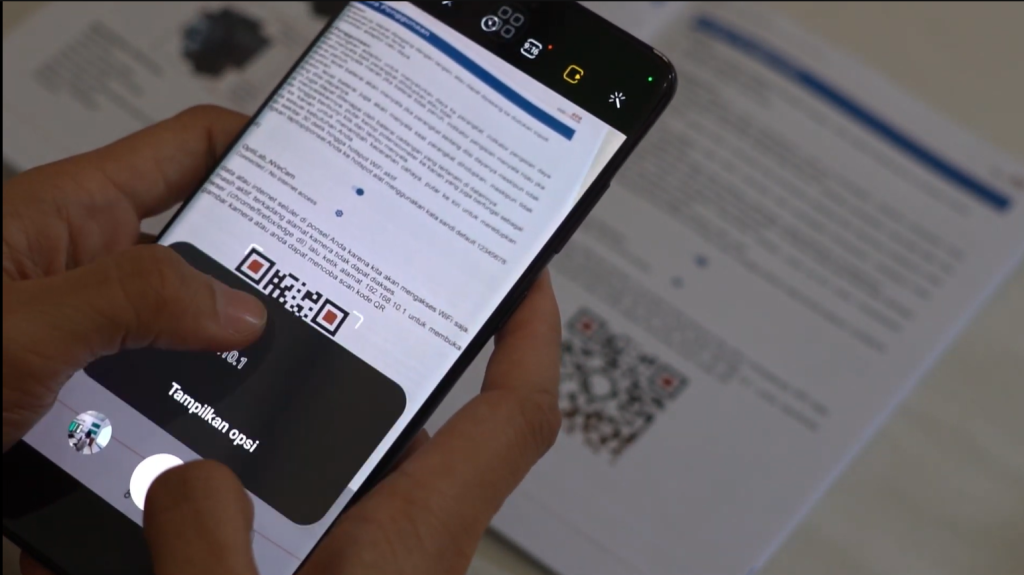
Once the device is connected to the NVeCam Wi-Fi network, open a browser such as Chrome, Firefox, or Edge. Type the address 192.168.10.1 into the address bar to open the camera’s view page. Users can also try scanning the QR code provided, following the instructions in the user manual.
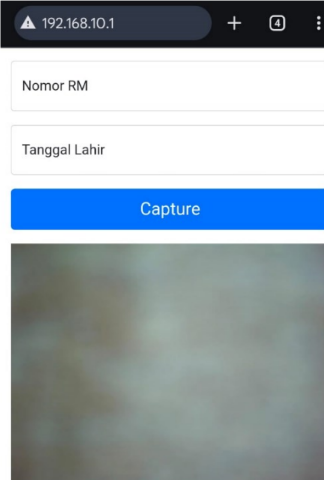
Once the page opens, users can enter their medical record number and date of birth in the provided fields, then point the camera at the area to be examined, following the healthcare provider’s instructions.
4. Save the Examination Results Image
To save the displayed image, click the “Capture” button on the NVeCam webpage. The captured image will be saved to the “Downloads” folder on your device. If this feature does not work, you can use the screenshot feature on your laptop or smartphone.
5. Pay Attention to Patient Data Storage
NVeCam displays images via a connected device and does not store image files directly on the camera. Therefore, healthcare professionals must ensure that examination images are saved and transferred in accordance with procedures that protect patient data confidentiality.
Use NVeCam to Support Cervical Screenings
With a Wi-Fi connection and browser access, OptiLab NVeCam can be used to display and document images from cervical examinations on a laptop or smartphone. For product information and to purchase NVeCam, Visit the official website of PT Miconos.