


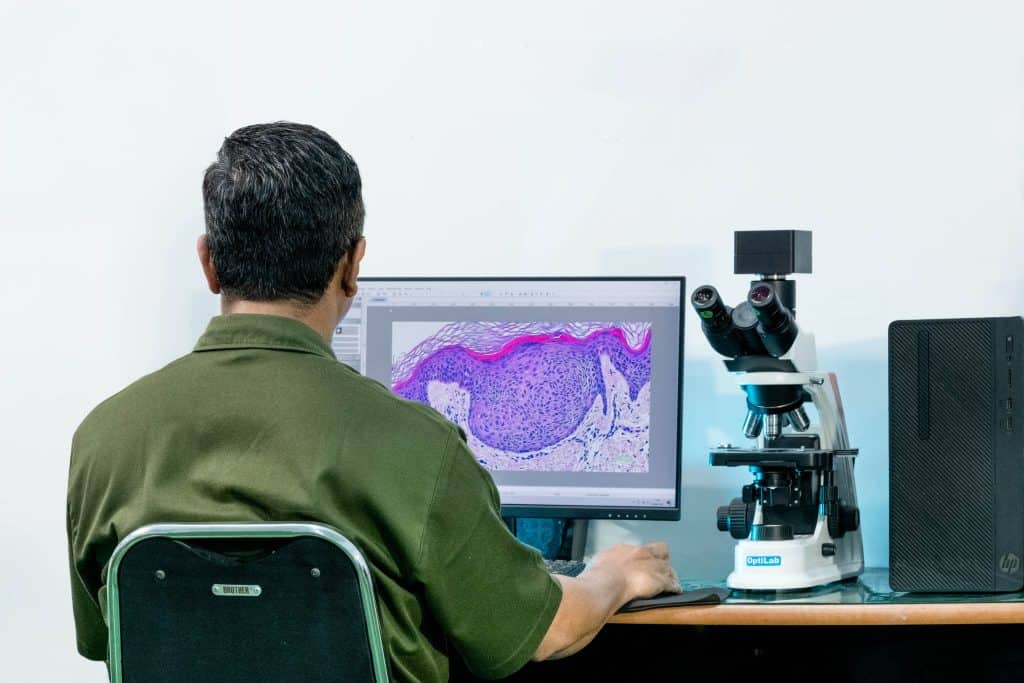
Using the OptiLab microscope camera allows observations to be displayed digitally on a computer. To use the camera to display images from the microscope, users must first install OptiLab Viewer 4 on their PC or laptop.
The installation process is quite simple and can be performed using the USB flash drive included in the package when you purchase an OptiLab camera. Here are the steps.
OptiLab Viewer 4 Installation Steps
After verifying that your computer meets the requirements, prepare the installation USB flash drive that came with your OptiLab camera.
1. Insert the USB flash drive
Connect the OptiLab installation USB flash drive to a USB port on your PC or laptop.
2. Open File Explorer
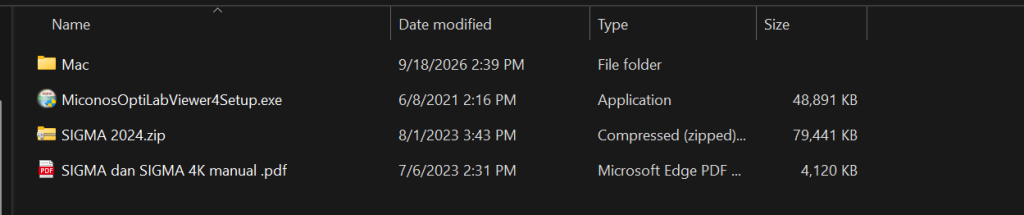
Open File Explorer, then locate the USB flash drive that is connected. Find the installation file or setup OptiLab Viewer 4, which is an “Application” file type.
3. Run the setup file
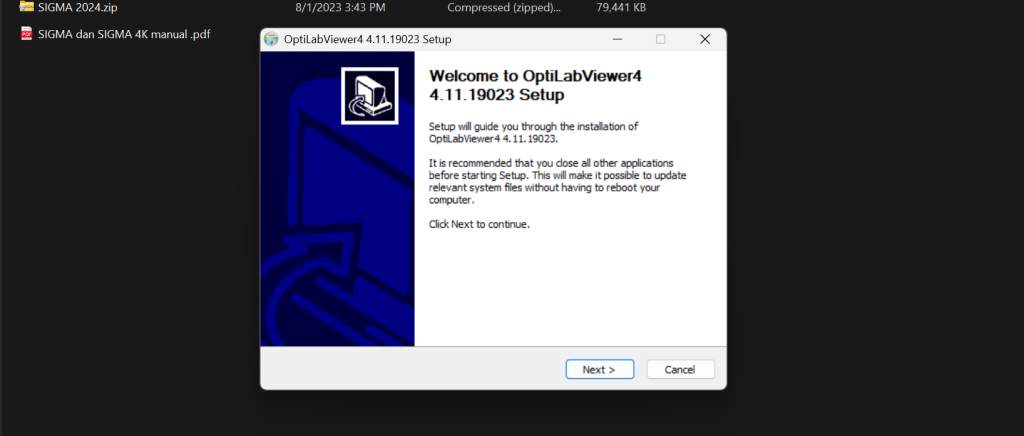
Click or run the file setup To begin the installation process for OptiLab Viewer 4, follow the on-screen installation instructions on your computer until the process is complete.
4. Open OptiLab Viewer 4
Once the installation is complete, the software can be found via the icon in desktop or by searching for “OptiLab Viewer” in the Windows search bar.
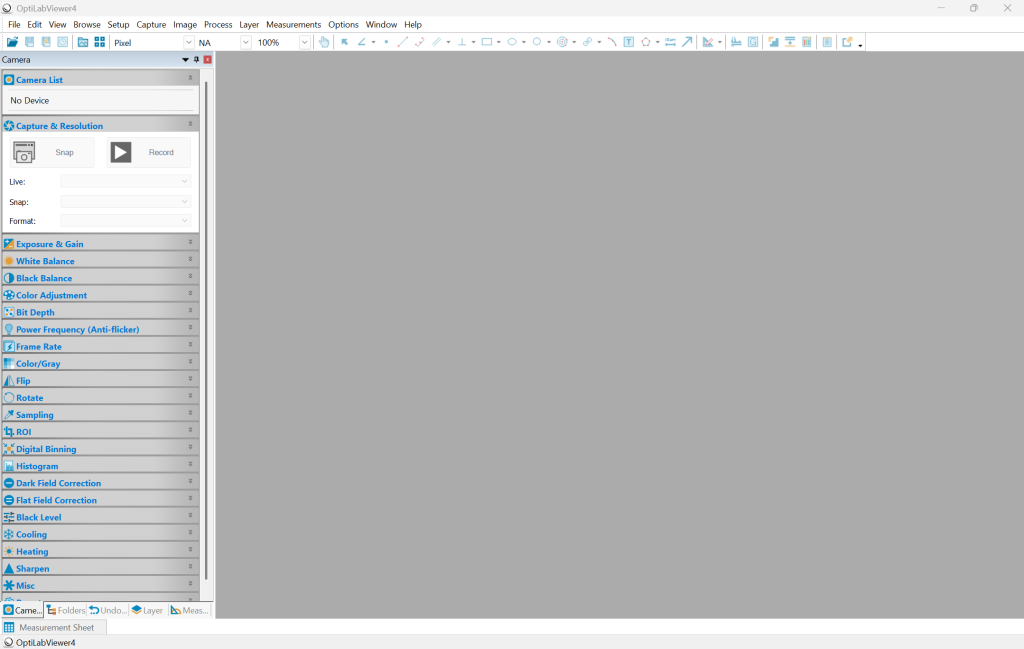
Connecting the OptiLab Camera to a Computer
Once the software is installed, the camera can be used to display the microscope’s images. Turn on the microscope until it is ready for use, then connect the OptiLab camera to the computer using the included USB cable. Next, launch the OptiLab Viewer software to begin observing.
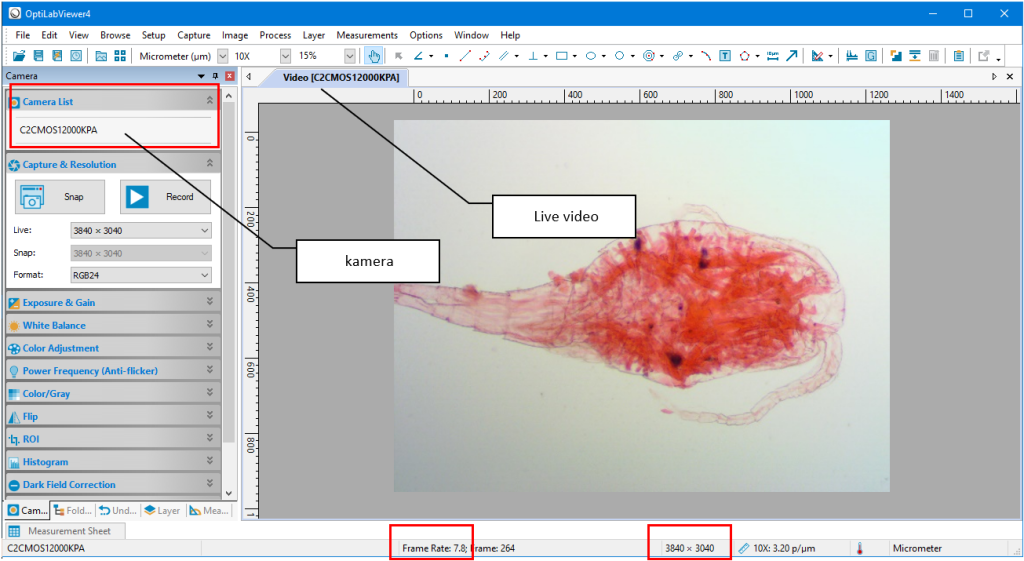
Make sure the camera is connected properly so that the image from the microscope can be displayed on the computer screen.
If the Camera Does Not Display an Image
If the camera is not displaying an image, check the USB cable connection again. If the screen is black, make sure the microscope light is turned on and that the microscope’s light path selector is set to the camera.
If the image appears out of focus, adjust the focus on the microscope. Meanwhile, an image that is too dark can be corrected by increasing the light intensity or adjusting the exposure settings.
OptiLab Viewer 4 for Digital Microscope Observation
With OptiLab Viewer 4 installed, the OptiLab microscope camera can be used to display observation results digitally on a computer. The installation process can be completed in a few simple steps using the software included with the camera package.
For more information about OptiLab microscope cameras and related products, visit OptiLab products on the official website of PT Miconos.