


Using a microscope camera can help display and document observed objects more conveniently. However, this process requires software capable of supporting a variety of needs, from image capture to measurement. OptiLab Viewer 4 offers a range of features that can support these activities within a single software application.
So, what features are available in OptiLab Viewer 4? Here are some of the functions users can take advantage of.
Getting to Know the OptiLab Viewer 4 Interface
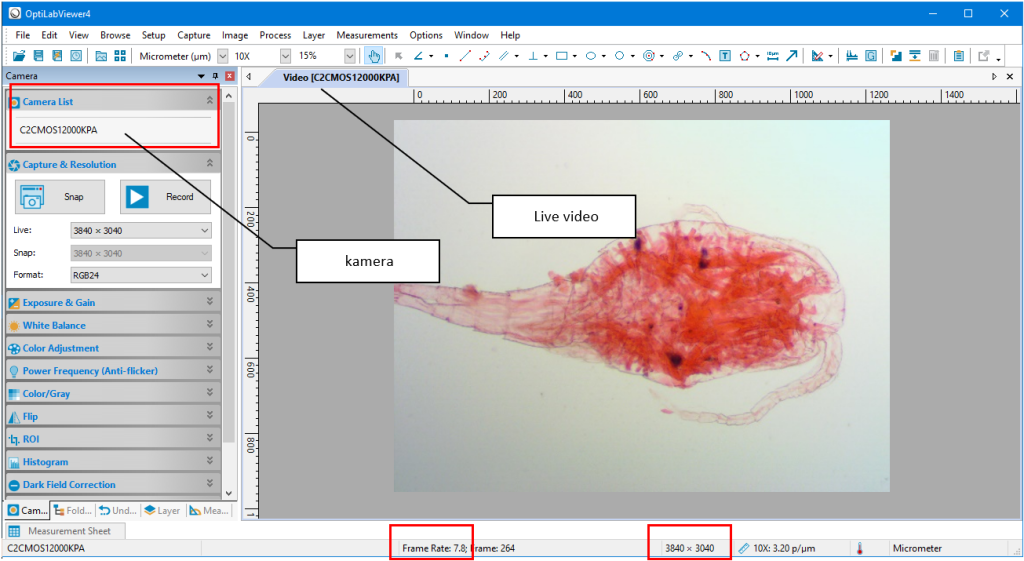
When the app is first launched, the image does not appear immediately. Users need to select a camera via the Camera Sidebar. Once a camera is selected, the live video feed will appear, and the Snap and Record buttons will become available. The live stream resolution, photo resolution, and image format can also be adjusted based on the camera being used. The status bar displays information such as resolution and frame rate (FPS).
Exposure and White Balance Settings
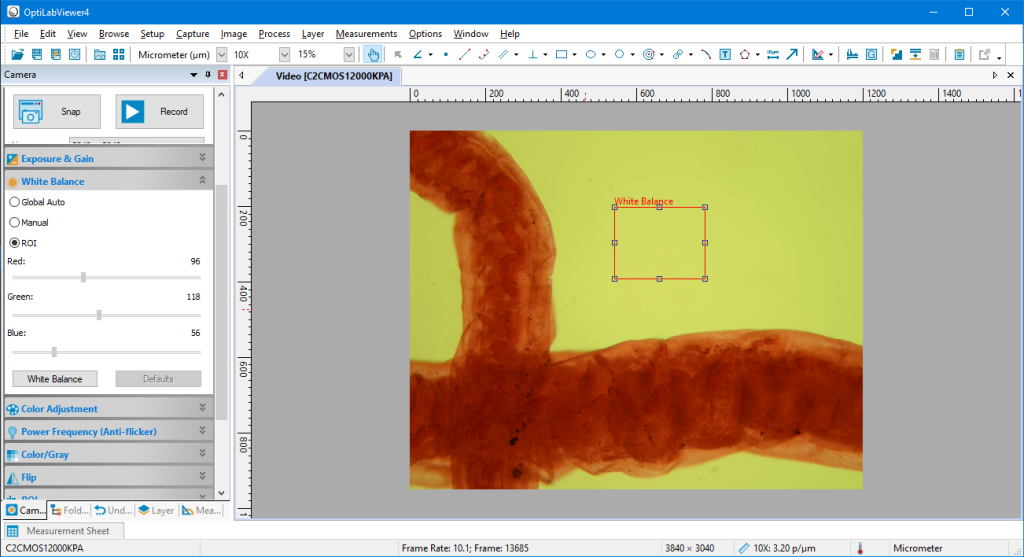
OptiLab Viewer 4 provides exposure settings to adjust the brightness of the image. Users can use Auto Exposure or manually set the exposure time and gain. Meanwhile, white balance is used to adjust the image colors so that objects appear more accurately.
Photo, Video, and Time-Lapse Documentation
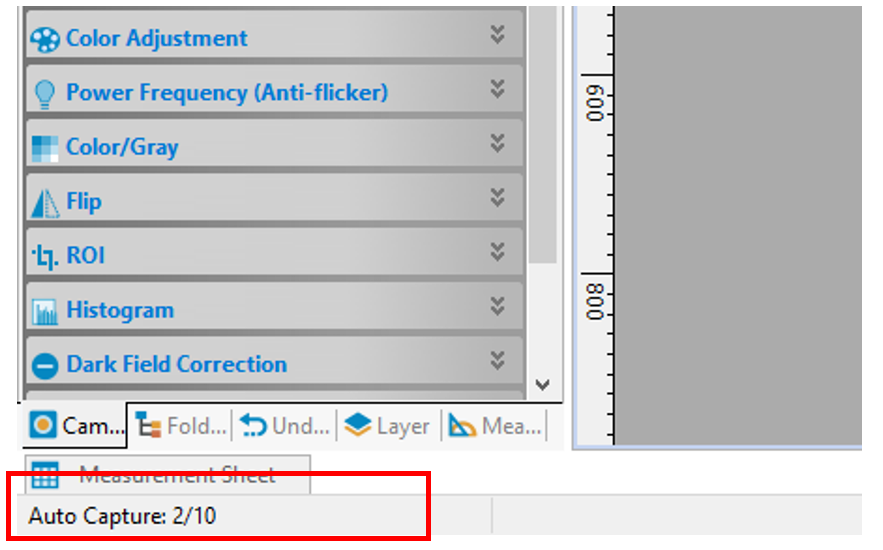
Observation results can be documented using the “Snap” feature to take photos or the “Record” feature to record videos. Photos can be saved manually or using QuickSave. Additionally, the “Time-Lapse Auto Capture” feature is available to take multiple photos at adjustable intervals.
Calibration and Image Measurement in OptiLab Viewer 4
Before taking measurements, users need to calibrate the system based on the objective lens magnification. OptiLab Viewer 4 offers several measurement methods, such as line, rectangle, polyline, polygon, and scale bar. Measurement results can also be overlaid on the image before it is saved.
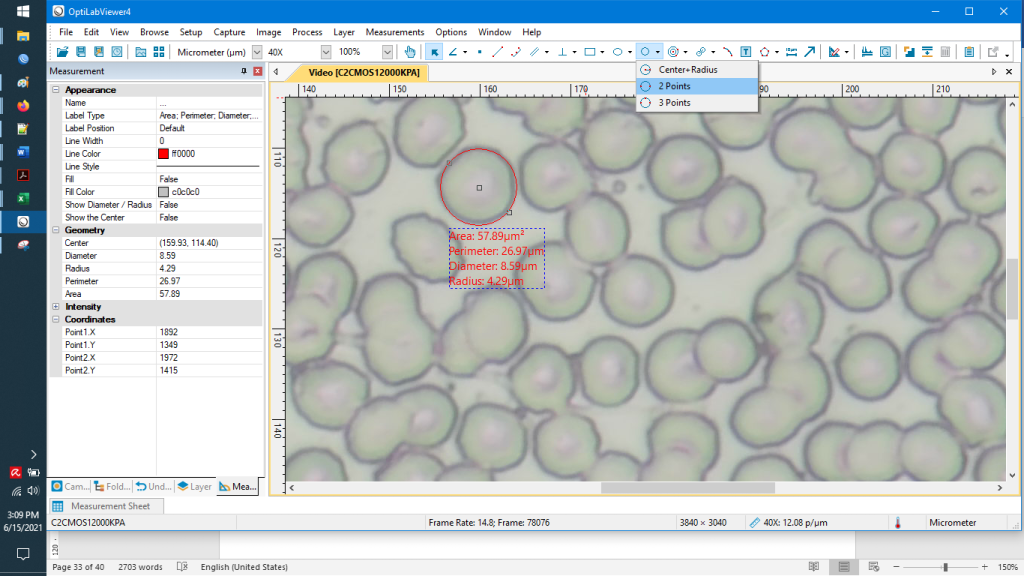
Image Processing with Additional Features
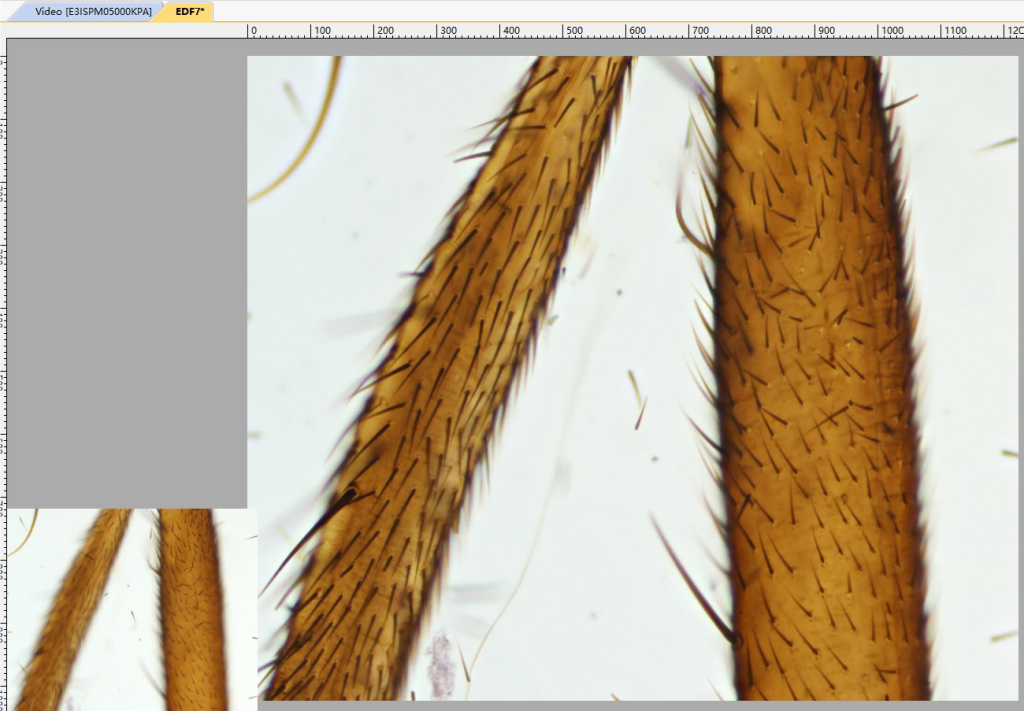
In addition to documentation and measurement, OptiLab Viewer 4 features Video Overlay, Counter, EDF, Stitching, and Color Composite. Video Overlay can display watermarks, timestamps, scale, and magnification information. EDF helps produce images with sharper focus on specific parts of an object, while Stitching can combine multiple fields of view into a wider image.
Markers, Text, Counters, and Grids
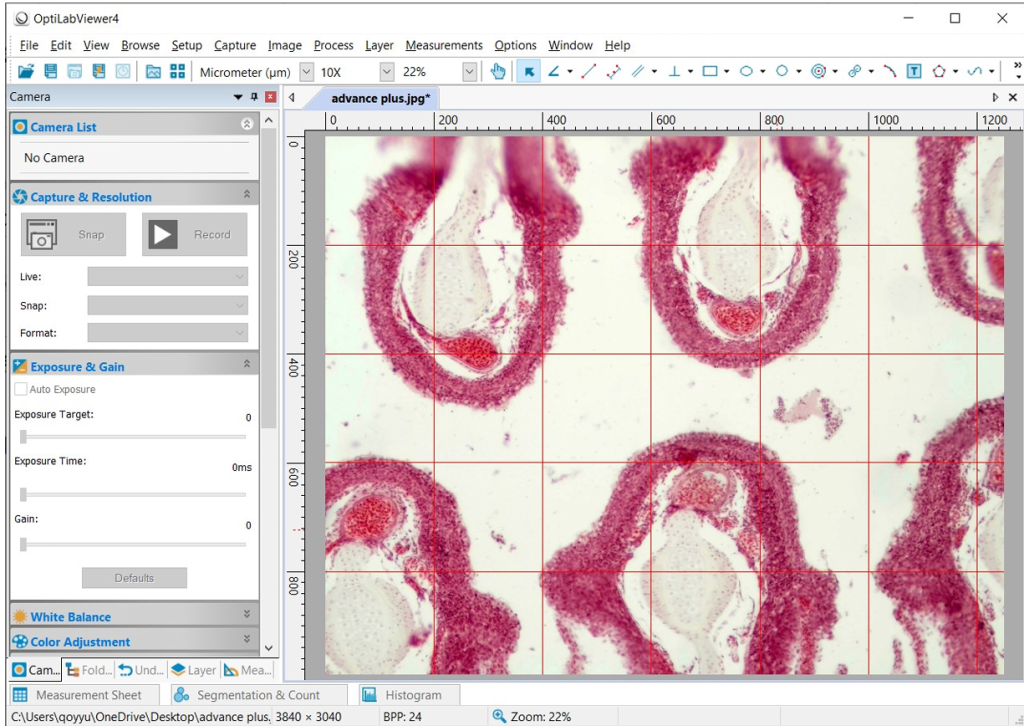
OptiLab Viewer 4 also offers a variety of documentation tools. Users can add arrows and text to both live video and captured images. In addition, it includes a counter and a grid display to assist with specific observation needs.
Supporting Digital Microscopy
With all these features,OptiLab Viewer 4 does more than just display images from a microscope camera. This software also supports photo and video capture, measurements, documentation, calibration, and image processing—all on a single platform.
digital observation and documentation needs. Interested in using an OptiLab microscope camera to support digital observation and documentation? View the selection of OptiLab microscope cameras and their full specifications at PT Miconos' official website or contact our team For consultations and purchases.