


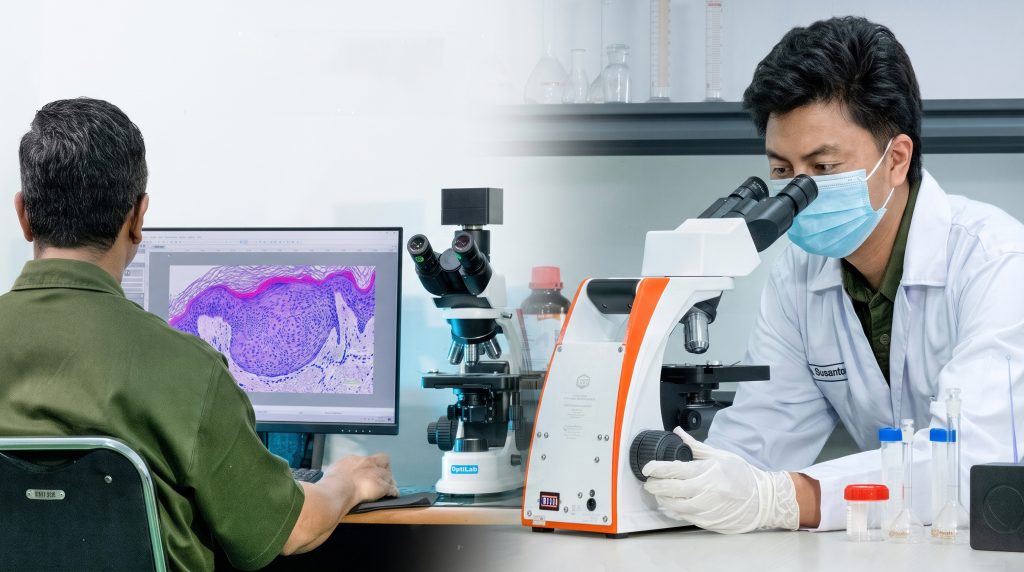
Have you ever observed a sample through a microscope’s eyepiece, then viewed the image captured by a digital camera on a computer screen and noticed a difference in color? For example, an object might appear brighter when viewed directly, but look yellowish, bluish, or darker on the screen.
This discrepancy is quite common when using a digital microscope camera. It does not necessarily indicate that the microscope or camera is defective. There are several factors that can affect the color display.
What Causes Image Colors to Vary?
There are several reasons why the colors of objects on the screen do not match what is seen through the eyepiece.
1. Differences in Eye Response and Camera Sensor Response
The human eye can adjust its perception of color based on lighting conditions. Meanwhile, digital camera sensors capture light based on their sensitivity to red, green, and blue (RGB). This difference in response can cause the colors displayed by the camera to differ slightly from those seen through the viewfinder.
2. The White Balance Setting Is Incorrect
White balance adjusts the color balance in an image so that white or neutral gray objects do not appear yellowish or bluish. If this setting is not properly adjusted for the microscope’s light source, the image may exhibit color shifts.
3. Light Intensity and Color Temperature
Light sources, such as LED or halogen lights, can affect the color of objects captured by the camera. Changes in light intensity can also alter the lighting conditions, causing the resulting images to look different.
4. Monitor and Software Settings
The colors displayed on the screen are also affected by monitor settings, such as brightness, contrast, and color profiles. In addition, camera software may have image processing settings that affect the final result.
How Do I Adjust the Color of an Image?
To achieve a color display that more closely matches what is seen through the eyepiece, the following steps can be taken:
- the camera's white balance using an empty area with even lighting or a neutral white reference.
- Adjust the lighting intensity before performing color calibration.
- Adjust the exposure so that the image isn't too dark or too bright.
- Check the monitor's color and display settings.
Get More Consistent Microscope Documentation Results
Digital microscope cameras help display and save observation results. However, the quality of the documentation is also affected by appropriate lighting, camera settings, and the monitor display.
OptiLab dari PT Miconos menyediakan perangkat pendukung pengamatan dan dokumentasi mikroskopis. Untuk mengetahui pilihan kamera mikroskop digital dan perangkat OptiLab lainnya, kunjungi situs resmi PT Miconos.